The Senquip QUAD-C2 can communicate with the Senquip Portal or a remote server using Wi-Fi and cellular networks. Cellular connectivity is provided using LTE Cat-M1 and LTE Cat-1 technologies, offering a balance between coverage, power consumption, and performance for telemetry and monitoring applications.
Wi-Fi on the Senquip QUAD-C2 is used to transmit data, to allow settings to be remotely updated, to allow in-field software updates and also to enable setup via an integrated web-server that can be accessed in setup mode via a mobile phone or other Wi-Fi device.
The Wi-Fi implementation supports Wi-Fi 802.11 b/g/n. The Wi-Fi antenna is integrated into the Senquip QUAD-C2. In typical applications, the range achievable with Wi-Fi is 500m.
In the absense of Wi-Fi, the QUAD-C2 will attempt to connect using a local cellular network. Senquip devices use cellular networks to transmit data, to allow settings to be remotely updated, and to allow in-field software updates.
The QUAD-C2 cellular implementation is designed for global use and supports Cat-M1 and CAT-1 in the following bands:
LTE and Wi-Fi reception depend on network coverage, the mounting location and the materials surrounding the device. For devices with internal antennas, the position of the device also determines the position of the antennas.
Metal enclosures, electrical cabinets and surrounding machine structures can significantly weaken or block LTE and Wi-Fi signals. A device that connects reliably outside an enclosure may have intermittent or no connectivity after installation.
For best performance, position the device away from surrounding metalwork and sources of electrical interference. Plastic enclosures generally have less effect on reception, although their contents and mounting location can still affect performance.
Note
Verify reliable communication at the intended mounting location, with all enclosure doors and machine covers closed and the equipment operating normally. Test LTE and Wi-Fi separately if both are required. Successful communication over one connection does not verify the other.
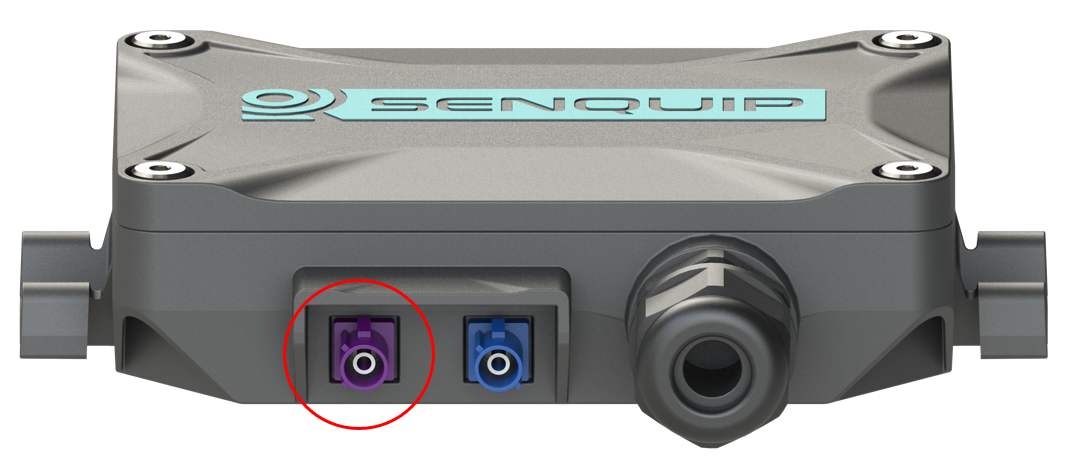
If reception is inadequate, relocate the device or use a model that supports an external antenna for the required connection, with the antenna positioned outside the metal enclosure and clear of surrounding obstructions.
The Senquip device provides the following network interfaces:
Interface
Purpose
Cellular
Secure communication with the Senquip Cloud and
customer-configured endpoints.
Wi-Fi
Secure communication with the Senquip Cloud and
customer-configured endpoints.
Bluetooth Low Energy
(BLE)
Local commissioning and configuration using the
Senquip Connect App.
Wi-Fi Access Point
Local commissioning and configuration in setup mode.
Network services exposed by the device include:
Service
Availability
Embedded Webserver
Available in setup mode and protected by the device
setup password.
BLE Configuration
Service
Available in setup mode and protected by the device
setup password.
MQTT Client
Outbound communication to authorised cloud or
customer-configured endpoints.
HTTP/HTTPS Client
Outbound communication to authorised cloud or
customer-configured endpoints.
The device does not provide SSH, Telnet, FTP, remote shell access, or support for arbitrary user-installed network services.
All Senquip Cloud communications use authenticated and encrypted communications. Customer-configured endpoints and services are the responsibility of the endpoint owner.
When connected to a Wi-Fi network, the Senquip QUAD-C2 may need to establish secure outbound connections to Senquip services. If your network uses a firewall, the following outbound ports should be permitted.
Function
Port
Description
NTP Time
123
Synchronises the device clock. Accurate time is required for timestamping measurements
and for security functions such as certificate validation.
MQTT (Senquip
Portal)
8883
Secure communication between the device and the Senquip Portal.
HTTPS (OTA Updates)
443
Used for Over-the-Air (OTA) firmware updates and other secure web services.
Note
These ports are used for outbound connections only. No inbound ports need to be opened on your firewall.
Note
If custom endpoints are enabled, additional ports may need to be opened.
The following Wi-Fi authentication modes are supported:
WPA
WPA2
WPA3
Connecting to a Wi-Fi or LTE Network with the Senquip Connect App
The Senquip Connect App is a mobile application that allows users to connect to nearby Senquip devices using Bluetooth to configure networks and for data viewing. The app is available for both Android and iOS devices running recent firmware. See the Senquip Device Firmware Changelist for more information on compatible firmware versions.
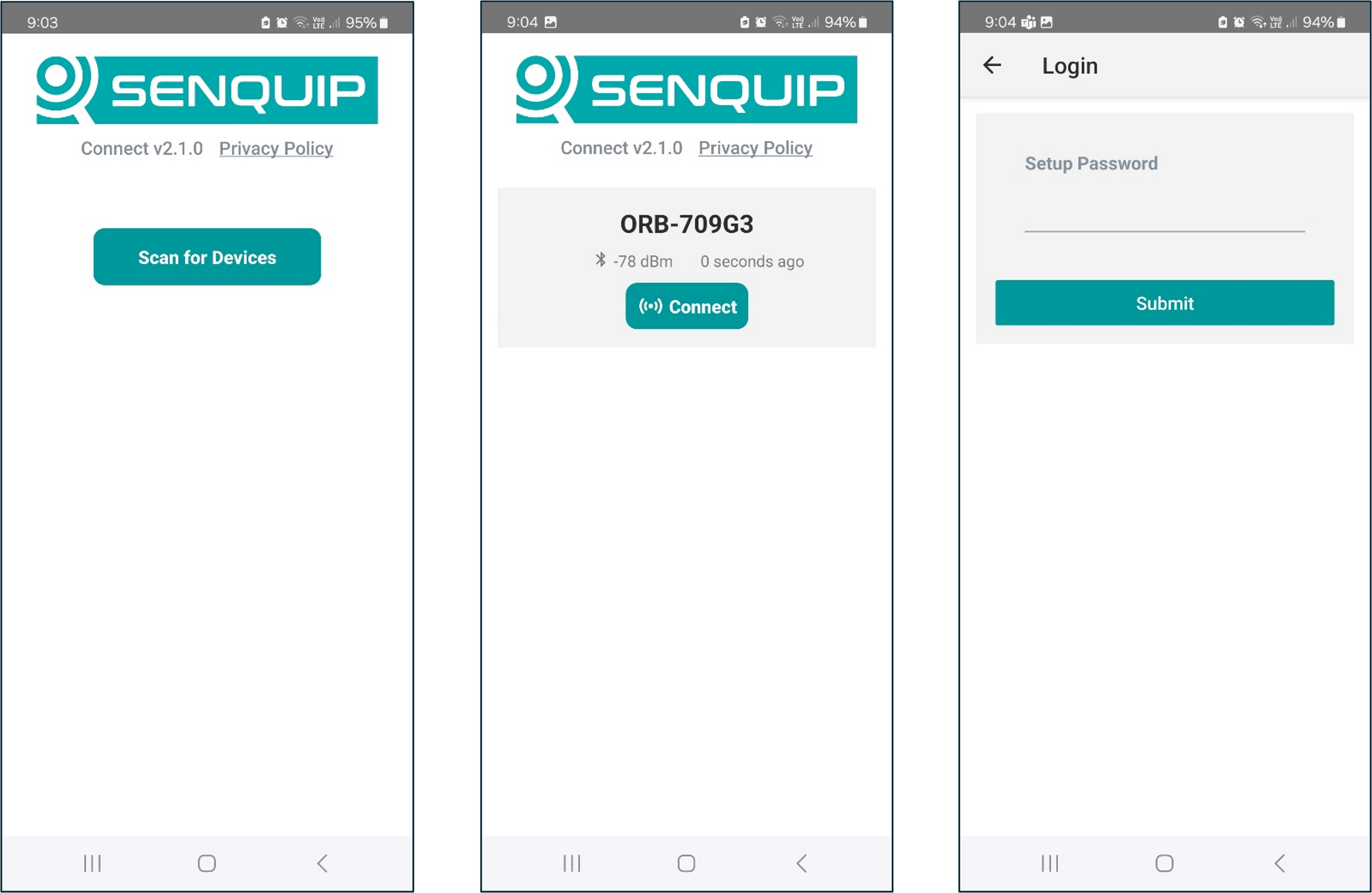
Network configuration via Bluetooth is available when the Senquip device is in setup mode. To enter setup mode, press the setup button on the device. The green light will start to flash. Open the Senquip Connect App and scan for available devices. Devices in setup mode will allow connection for the purpose of network configuration. Press connect and enter the device setup password.
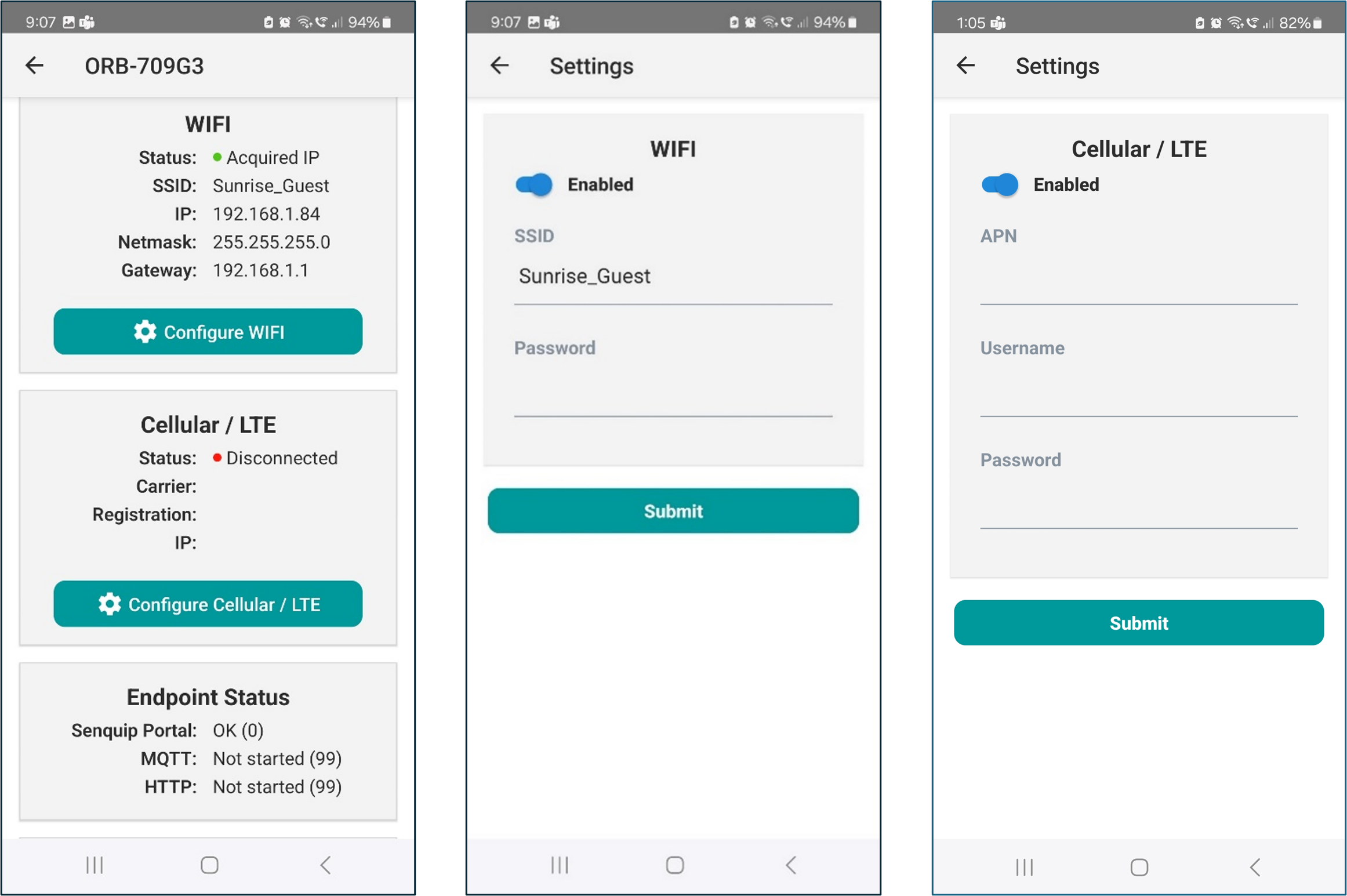
For Wi-Fi networks, the chosen SSID and password need to be entered. Further advanced Wi-Fi settings are available when using the embedded webserver or Senquip Portal for configuration.
For LTE networks, Auto APN can be enabled in which case the device will attempt to find a suitable APN for the network. Alternatively the APN for the network should be entered. In rare cases, a username and password are required for the SIM.
Press Submit to send the settings to the device. The device will save the settings and will reboot back into setup mode. To exit setup mode, press reset on the device. Continue device configuration using the Senquip Portal.
Connecting to a Wi-Fi Network with the Embedded Webserver
Once in setup mode, use the Network page to connect the Senquip QUAD-C2 to a Wi-Fi network.
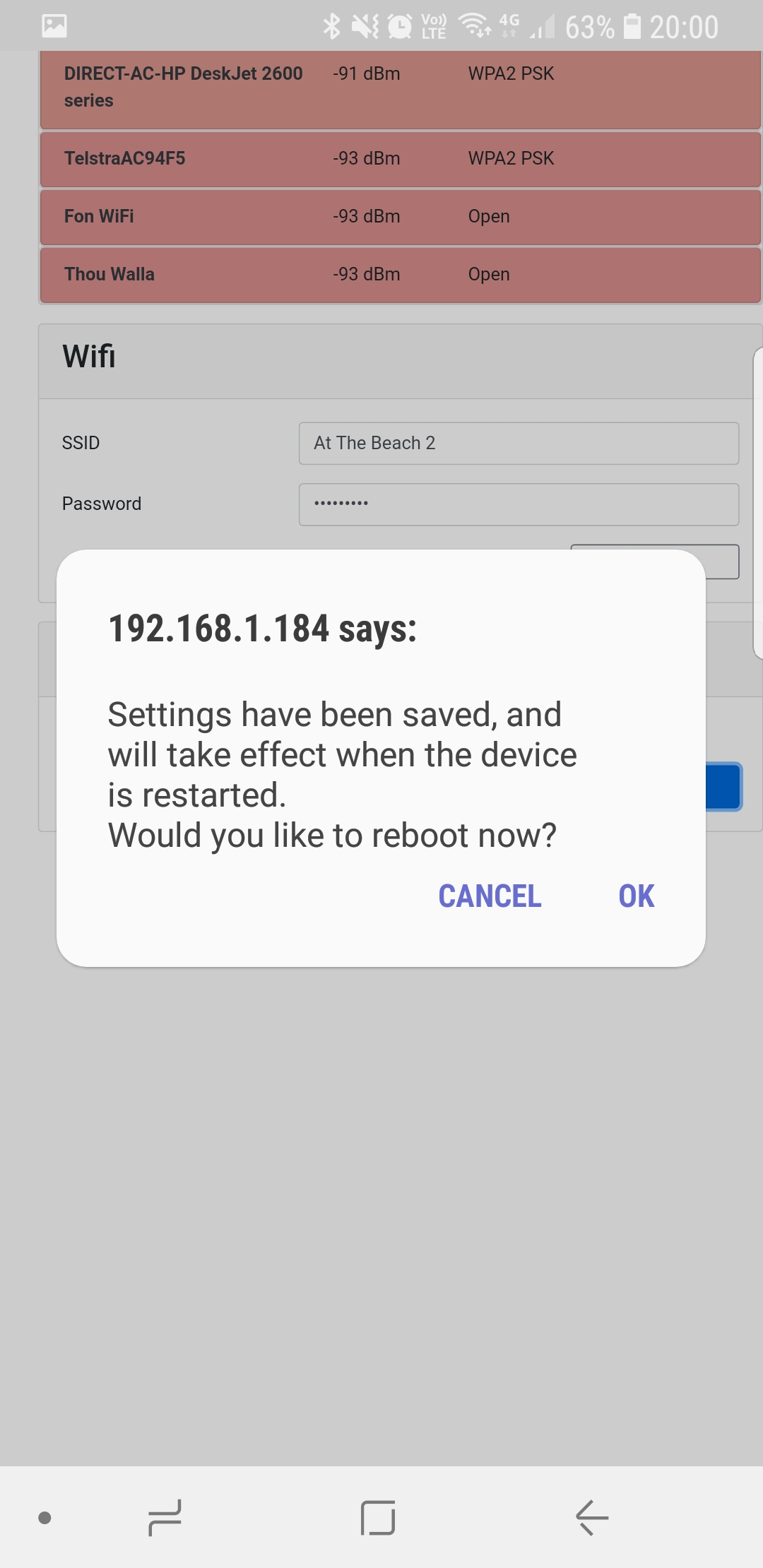
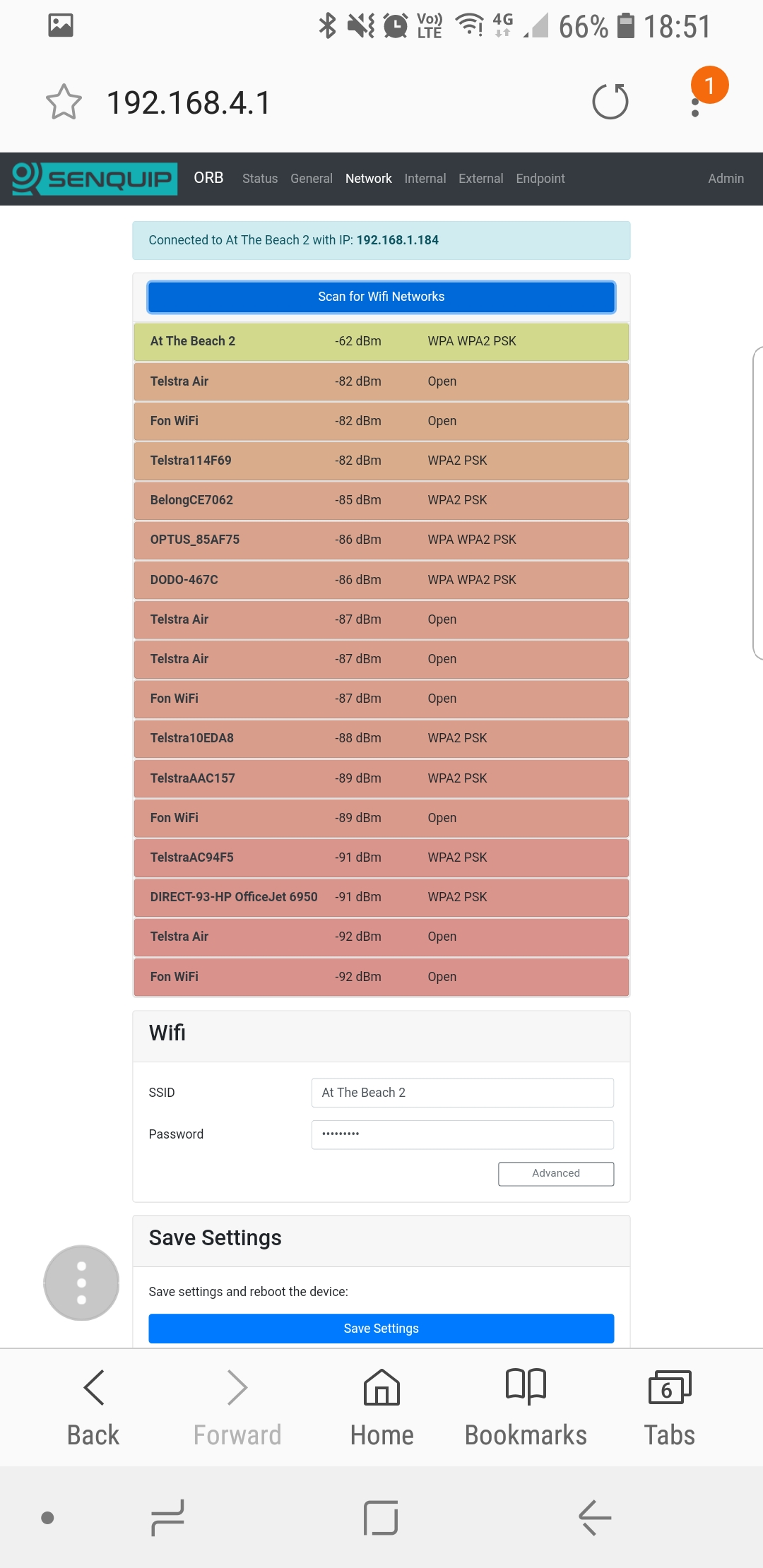
On the Network page, press the Scan for Wi-Fi Networks button. After a few seconds, a list of SSIDs for visible Wi-Fi networks will be shown. Select the Wi-Fi network to which you would like to connect by selecting the SSID from the list. The SSID will automatically be copied to the Wi-Fi SSID field and you will be prompted for the network password. After entering the password, press Save Settings. You will be prompted to restart the device; settings will only be applied after a restart. To continue with setup, press CANCEL or to restart and apply your settings, press OK.
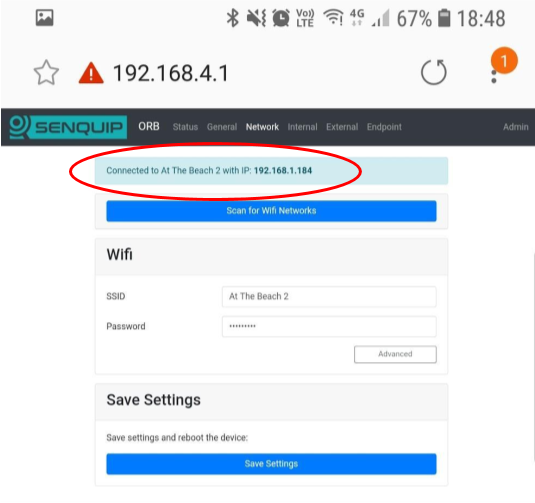
After a reboot, the Senquip QUAD-C2 will attempt to connect to the specified Wi-Fi network. You can check if the Senquip QUAD-C2 has successfully connected to the chosen network by placing the device in setup mode and returning to the Network page. At the top of the page, the current network status will be shown. Note the IP address that your Wi-Fi modem has allocated to the Senquip QUAD-C2; you can use this address to access the device directly on your WiFI network.
Further Wi-Fi settings are available by selecting the Advanced option. Once selected, a static IP address, netmask, gateway and DNS server can be specified.
The integrated web-server is normally only active in setup mode; it can however be made to be always on by setting the web setting to ON. This may be an advantage in systems where permanent power is available and the user wants to be able to make remote changes directly on the Senquip QUAD-C2 without having to access the Senquip Portal. Keeping the web-server active will require that the device remain awake at all times but does mean that the user can make instant changes to settings and see the latest measured data.
A full list of Wi-Fi settings is given in the table at the end of the chapter.
Connecting to an LTE Network with the Embedded Webserver
Once in setup mode, use the Network page to connect the Senquip QUAD-C2 to a mobile network.
In most cases only an APN will be required to establish a 4G LTE connection. Some service providers will require a username and password and some SIM cards will require a pin. If these are not needed, leave them blank.
For CAT-1 devices, an additional Connection Mode setting is available. This setting allows the selection of 4G or 2G, 3G, 4G mobile technology. 4G offers higher bandwidth and is recommended unless there are initial connection issues.
A Roaming option is available for SIM cards that offer connection to networks other that SIM card home network.
Network settings can be changed remotely from the Senquip Portal. Remote changes are convenient, but a wrong network setting can leave a device with no connection to the Portal. A device that cannot connect cannot receive a corrected setting, and the only way to recover it is local access in setup mode.
Before changing network settings remotely:
Change one network setting at a time and confirm the device reconnects before making the next change.
Check the new settings carefully, for example the Wi-Fi SSID and password, or the APN.
Make sure the device still has a working fallback. For example, do not disable Wi-Fi while the SIM or APN has not yet been proven to work.
Plan how the device will be recovered if it does not reconnect, and how long it may take to reach it.
Note
Settings changes are queued in the Senquip Portal and are delivered the next time the device connects. Most network setting changes cause the device to reboot.
A device will always use Wi-Fi when the configured Wi-Fi network is available, and only uses cellular in the absence of Wi-Fi. To test the cellular connection on a device that has working Wi-Fi, Wi-Fi must be disabled. If the cellular connection then fails, the device can no longer be reached remotely.
The script below provides a safety net for this test. It does nothing during normal operation. When Wi-Fi has been disabled, it waits for a set time and then turns Wi-Fi back on and reboots the device, so the device returns to the Portal over Wi-Fi even if cellular does not work.
// Cellular test safety net.// If Wi-Fi has been disabled (wifi.sta.enable = false), turn Wi-Fi and// cellular back on and reboot after TEST_MINUTES of uptime.load('senquip.js');load('api_sys.js');load('api_config.js');letTEST_MINUTES=15;// length of the cellular testletrestoring=false;// makes sure settings are only written onceSQ.set_data_handler(function(data){if(!restoring&&Cfg.get('wifi.sta.enable')===false){if(Sys.uptime()>TEST_MINUTES*60){restoring=true;Cfg.set({wifi:{sta:{enable:true}},gsm:{enable:true}});Sys.reboot(5000);}}},null);
The code above can be added to an existing script. If the script already has a data handler, add the lines inside the existing handler rather than creating a second one.
To test the cellular connection:
Load the script and confirm the device is still reporting to the Portal over Wi-Fi.
Set the device to remain awake: set Always On to ON. The script measures time since the last reboot, and a device that sleeps restarts this count on every wake.
In the Portal, set Wi-Fi Enable to OFF. The device reboots and connects using cellular.
Confirm that data arrives in the Portal over cellular, and check the signal strength.
When the test time has passed, the script turns Wi-Fi back on and reboots the device. The device returns to the Portal over Wi-Fi. If the cellular test was successful, Wi-Fi can also be turned back on earlier from the Portal.
Restore Always On and remove the script if it is no longer required.
Note
The safety net only works while the script is running. If scripting is disabled, the script contains an error, or a new script is loaded without these lines, Wi-Fi will not be turned back on automatically.
Note
The script restores Wi-Fi only if Wi-Fi was disabled. It does not correct other wrong settings, such as an incorrect Wi-Fi password or APN. When changing other network settings remotely, follow the precautions above.